
How to LoreBary: A Guide (OUTDATED)
LoreBary is an unofficial JAI extension that acts as a proxy bridge to multiple LLM providers. It allows you to add commands, lorebooks, and many other enhanced features to your roleplay. This is meant to be a condensed guide containing essential information for beginners. You can find more detailed explanations in the LoreBary Academy. Also, this guide is written under the assumption that the user already has knowledge of the basic workings of AI roleplay.
Index
Made by: Shuunami & Tissem
With assistance from: Wulong❤️Special thanks to LoreBary's dev team: Sophia, Wulong and Dong!!
E-mail: [email protected]
Proxy Set Up
Original providers:
1. Go to Sophia's LoreBary's Proxy Connection Hub.
2. Look for the provider you want and copy the corresponding proxy URL.
3. You can copy the model name from the provider's website (any model from the listed providers is available and can be used).
4. Put the LoreBary proxy URL link and the model name you copied in the corresponding fields in JAI's API Settings.
5. Input your API key from that specific provider.
6. Save Settings (both buttons) in JAI and refresh page.
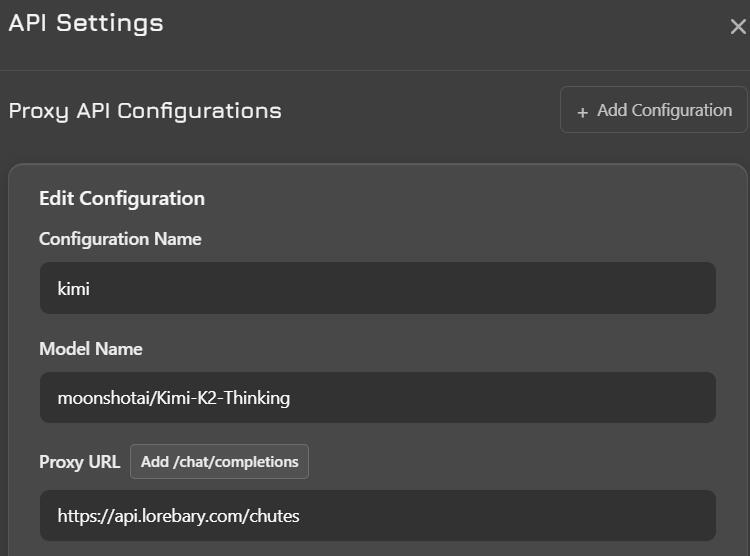
Your setup should look similar to this
Custom proxy
1. Go to Sophia's LoreBary's Proxy Connection Hub.
2. Choose the option that says "Cheating On Us?".
3. The provider/proxy you want to use must have their own curl, you can find that in their website. Copy it. It goes in the Endpoint URL field.
4. You can also copy the model name from the provider/proxy website. Keep it for later. It goes in JAI's API Settings.
5. Select the corresponding path to append.
6. Select API type (OpenAI, Gemini or Anthropic). Most APIs are the same type as OpenAI.
7. Click on the Create Proxy button. You should get a LoreBary proxy URL link.
4. Put the LoreBary proxy URL link and the model name you copied in the corresponding fields in JAI's API Settings.
5. Input your API key from that specific provider.
6. Save Settings (both buttons) in JAI and refresh page.
ⓘ Wondering how to use local models with LoreBary? There are a few extra steps, but worry not, here is a guide by Wayfarer.
How to use LoreBary's features?

When browsing LoreBary's libraries, find the content you want and copy the code. Paste that code into your custom prompt field, which can be found in the Proxy Configuration tab in JAI.Commands, plugins and lorebooks are all activated the same way: just copy the code and paste it in your 'Custom Prompt' field in JAI. You can place them either above or below your actual custom prompt.
ⓘ The features will NOT work unless your proxy URL belongs to LoreBary's permanent servers, i.e., the ones listed in Server Portal. Reason: the command code can only be correctly interpreted when going through those servers. To any other server, it looks like a random string of characters with no meaning. This is also the case for LoreBary's colab (you can manually enable a few commands there).Where to find the command library? Go to Server Commands.Pay attention to Plugin activation settings!
Where to find the Plugin Library? Plugin LibraryPay attention to Lorebook activation settings!
Where to find the Lorebook Library? Lorebook Library❗Note: you can also put codes in your chat memory, persona, and even bot definition! This way you can customize your roleplay per chat, persona, bot. Codes in custom prompt will affect all chats using that particular proxy configuration. Note that this will not allow you to bypass limits for each category!Important: if you put a code in chat, it can get pushed out of the context window after enough messages, so it's generally not recommended.
Command limitsCommands: 10
Plugins: 6
Lorebooks: 3
Scenario: 1
Character: 1
Persona: 1
Prompt: 1
Memory core: 1
Template: 1
Summary: 1
Are LoreBary's features enough for roleplay?No, the features aren't enough by themselves. You need to also use a custom prompt. Why? Most AI models, especially ones from big corporations, were not designed with roleplay in mind. This is why most AIs will need guidance on how to properly act as your roleplay partner. Additionally, custom prompts are a way to tailor the model's behavior to your own tastes. LoreBary features are not meant to replace your custom prompt, just complement it. Make sure that the features you choose don't overlap or contradict your custom prompt. Some recommended custom prompts here.So why use commands at all?Commands can fall into several categories: some simply add functionalities, like WEB SEARCH and CLAUDE CACHING, others help with filters, etc. However, there's many commands that are particularly effective in diversifying roleplay. Some commands, like for example NPC NEEDS and SLICE OF LIFE, aren't just a prompt. They're dynamic injections that will add events and situations to your story, making it richer and more exciting. Plugins can also do this with the correct settings.If you're wondering what commands/plugins/etc. you should use: select the ones that bring something your base custom prompt lacks, or if they help with certain undesirable model quirks. It's highly subjective, so the best way to find out what you like is to test them yourself.
Commands
Most commands are injections meant to enhance roleplay. LoreBary will inject them along with your last message, at the very bottom of your request. They can all be found in the Server Commands page. Just copy the command and paste it into your custom prompt. The limit is 10 commands, but a general recommendation is to use 3-5.You can check what each command does in their description. I've expanded on some special cases here.Adjusting commands
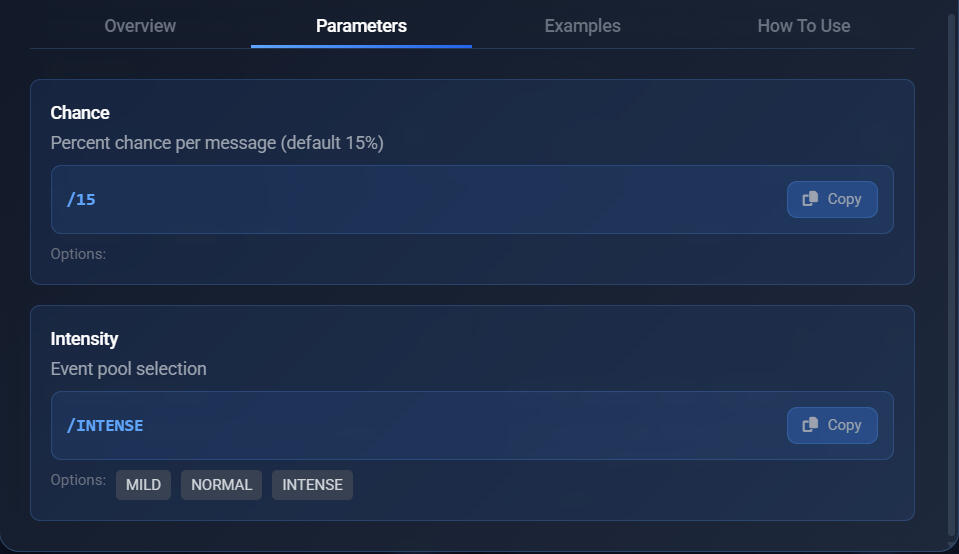
Some commands can be adjusted via parameters. For example, for NPC Needs, you can adjust the chance and intensity. Chance is a percentage. How to structure the parameters? For example, if you want to enable NPC Needs with MILD intensity and an activation chance of 40%, you should do: <NPCNEEDS/40/MILD>. If you don't set a specific chance, there is a default value that will be used.
Jailbreaking methods
Commands such as JAILBREAK and the several PREFILL options serve to jailbreak AI models.ⓘ Don't use JAILBREAK together with any prefill, and only use one PREFILL command at a time.How do they work?
JAILBREAK: In simplistic terms, it's an injection that makes the AI disobey its guidelines.
PREFILL: It forces the AI to begin its response with whatever's written in the prefill, then the AI will continue from there. It's a very effective jailbreak method. However, some models don't react well to prefill and will break if you enable one, at least on JAI (e.g. DeepSeek, Grok).
❗Note: Remember, models like DeepSeek, Mistral, etc., are uncensored and don't need jailbreak nor prefill! In fact, using a jailbreaking method with an uncensored model might induce hallucinations, making the AI act like it's censored.
<MYSETTINGS>This is a special command that lets you see the features you've got enabled and active. To check them, send the command in chat and the bot will respond with a list of your active features (any feature that's command code reliant). This does NOT send a request to the AI.
The command doesn't work? Possible causes: you're not using the LoreBary URL, you're typing it wrong (typo, lowercase, etc.), or you're exceeding feature limits.
The output of this command will show you a list of features you're using, that means they're enabled. For plugins, you will also see their state: idle means the plugin is enabled but hasn't been triggered in this request, and active means it was triggered.
Plugins
Credit for this section: Tissem
There are two ways to create your own plugins: Guided Forge and Manual Forge.
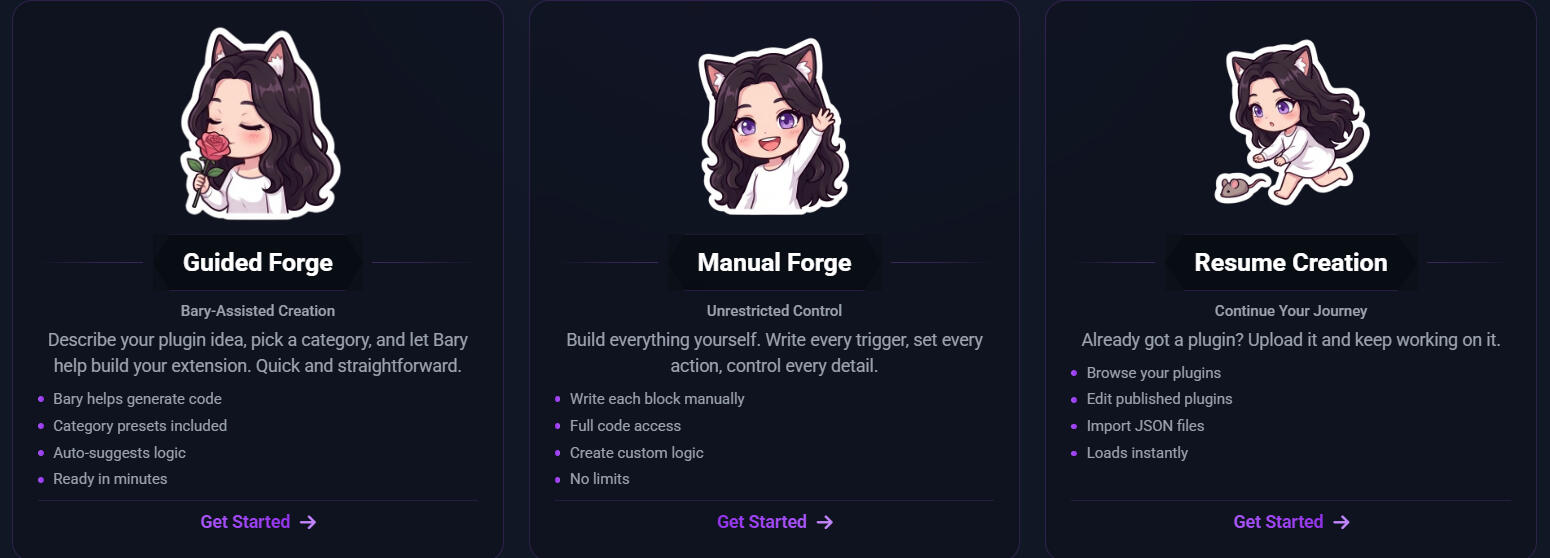
But before we go into explaining how to create a plugin, I should explain to you a few basics.
Misc Info
Do plugin injections stay in your context? No, they don't.
Command tag: it doesn't work if there's any spaces in the command tag!! Use underscore instead.
When creating your own plugin, avoid verbosity: following the general prompting rule, you don't want to make an overly lengthy plugin. Token-optimization!
Creators can choose whether to allow downloads or not.
Message pool: This is something that usually is not well understood by users. A message pool allows you to write down multiple options for your plugin when it is active. Let's say you make a pool of 3 messages. Whenever your plugin activates, it will randomly use one of those message as the plugin content. If you don't add more than one message in the message pool, the plugin will inject the same content each time.

You can edit your work here:

Or here:

Guided Forge
This feature will allow you to write the idea of the plugin you want to make and have an AI make it for you! It's a really easy way to try making your first plugins. Careful though, if you don't specify some elements, your plugins might not be working properly. Always include the kind of trigger you want. For a random activation, you must clearly say in your text how often you want the plugin to activate, this way the AI will create your plugin correctly. Same goes for keyword trigger, specify what word should be used, or the AI will set one.ALWAYS check the plugin after it has been generated. If the result is not satisfying, just delete it and go again.❗Note: You can use that feature 10 times a day, as it is an AI feature, there is a quota.
Manual Forge
This is the complete plugin creation feature. It is more complex, it is more fitting for seasoned pookies who have already created several plugins and know how to handle the different options (triggers, actions type, variables, etc). It is recommended to create and test your plugins when you're using this Manual Forge, note the differences, the expected result, etc.
You can create different blocks, each with their own content, triggers and variables. This way your plugin can have layers to it.
⚠️IMPORTANT: always put your plugin contents in Message Pool, not in Notes!!
Trigger type (Section: Triggers)
You can add more than one trigger. If you do, you will need to choose whether to use OR or AND logic.

✨Random Chance: Activation occurs with a certain probability. It's a ratio (explained at the bottom of this page).✨Always active: The plugin will be activated with each message.✨Keyword Detection: A specific word will activate your plugins, you can set several words, make sure to separate them with a comma though. It is not case sensitive, so it does not matter if it's in capital letters or not.✨Regex pattern: Uses regular expressions to match complex patterns.✨Time-based: Triggers at a designated time (IRL time).✨Date-based: Triggers on a given date (IRL date).✨Message count: The plugin is triggered when a certain number of messages have been exchanged (total messages).✨Message interval: Triggers every X messages.✨Variable: Choose this if you're working with variables. Select one you've created previously or create one on the spot.✨Switch: Triggers when a switch is in a state of your choice.
Chance: It's not a percentage, but a ratio! If the chance is X, the frequency of the command being activated will be 1 out of X. Some example values and their equivalents:10 (1 out of 10) = 10%
5 (1 out of 5) = 20%
3 (1 out of 3)= 33.3%
2 (1 out of 2) = 50%
1 (1 out of 1)= 100%As of now, I don't know if it admits decimal numbers.
Action Type (Section: Actions)
You can have more than one action group.
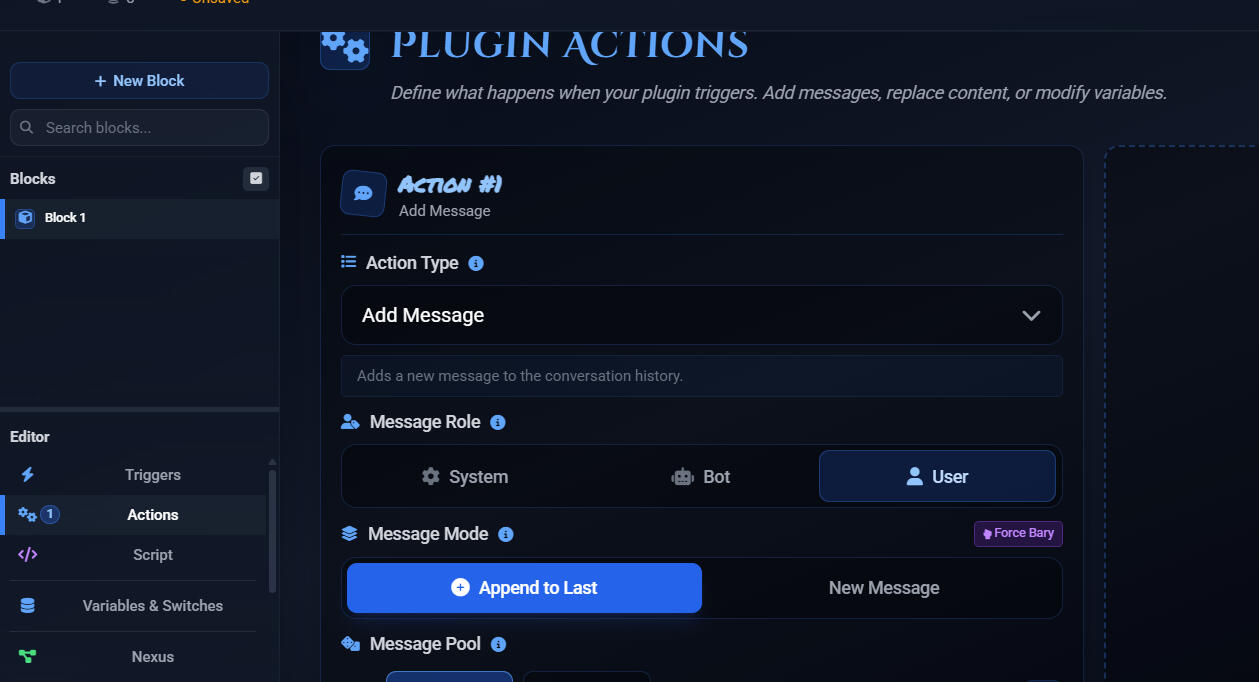
✨Add message: Injects the contents in the last message, making it the last intstruction received by the AI.✨Replace: Finds text and replaces it with other text of your choice.✨Set Variable: Choose this if you want to change the value of variables. Select one you've already created or create one on the spot.✨Set Switch: Change the state of a switch.
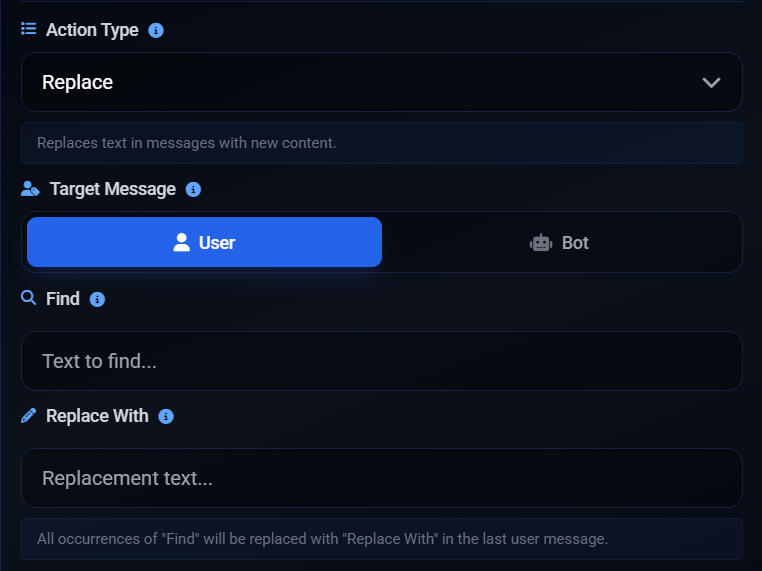
Message Role (Section: Actions)
✨System: The plugin content gets sent from system role. You cannot choose message mode.✨Bot: The plugin content gets sent from assistant role. You can choose message mode.✨User: The plugin content gets sent from user role. You can choose message mode.
Message Mode (Section: Actions)
✨Add to last user message: It will add your plugin's content, if activated, at the end of your last message (i.e., the bottom of your request).✨Add new message: It will create another message, after your own last message. This would also be placed at the bottom of your request.
Variables & Switches
Creating variables in the Variables & Switches section will allow you to trigger complex events in your roleplay.Variables (THIS FEATURE IS CURRENTLY MALFUNCTIONING)
You can have a fluctuating variable, and when that variable reaches a certain value, a specific event is triggered. Said variable can be a number or string (of text). You can define how much a variable increases or decreases, and you can set it to a certain value (do this in actions). For example, let's say you're picking apples and you have accumulated 5. You can trigger a sale event where you exchange 5 apples for 10 gold. Both apples and gold are variables here. The variable apple reaching the value of 5 will be the trigger for the sale event. If you want more details about the mechanics of this specific plugin, you can see it here. Click on Details to be able to see triggers, actions and variables.
For string variables, you can only replace.Switches
These will allow you to switch a plugin on or off. You can also enable/disable individual blocks.
ⓘ Nexus: This section is a visual representation of how each part of your plugin interacts.ⓘ Handbook: You can give brief instructions about how to use your plugin/how it works.
Lorebooks
Credit for this section: Tissem
Lorebooks are a powerful tool, if you learn to create one properly you can turn your roleplay into a whole new experience, enhanced, rich and immersive! These are files that help the AI remember important world details, character facts, and roleplay settings. You can think of them as your roleplay’s memory file — like a guide the AI can peek at while you chat. They help keep things more token efficient by injecting information into the context when triggered by certain words. They are not necessary but they do improve your roleplay only if your lorebook is properly built. LoreBary will inject the contents at the top of your request.❗A maximum of 15 entries can be activated per request.
Preliminary tips
Less is more, don't go overboard and write 2k entries. It's better to have multiple short, clear and relevant entries than several huge ones.
Write your lorebook in a notepad before you start creating your lorebook on the website. You never know what could happen, and it'll give you a better vision of what your lorebook will be like, avoiding repetitive informations or irrelevant entries. + You can check the tokens from your entries with a token counter.
Think about how the AI could use the informations you put in your entries, be intentional when you're writing your lorebook.
Wrap your entries in tags such as: <location_name>info</location_ name>
Creating your first lorebook
When creating your first entry, you'll want to immediately set a primary key, I'd advise you not to! You should start with the content, it's better to have a clear vision of what's in the entry, its content and purpose!There are several kind of entries, people use lorebooks for many purposes: characters, world info, lore, world rules, etc. The purpose of your lorebook will define the way you should write the content. Once you're clear with what the entry is about, you can define the category.
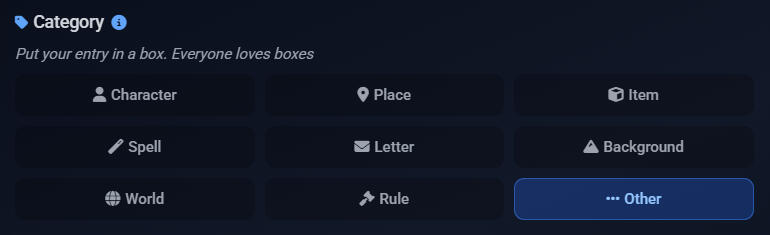
You should prefer prose-like entries, less than 500-800 tokens each, use straight to the point description, clear and unambiguous phrasing. Don't forget that you have a context size, you don't want to bloat it with useless details.Your bot will receive your entries as a system message, so you should give a bit of context in your content, throwing a list of words or names will just confuse your bot.To write your entries' content, you have many possibilities: make your bot write them for you with an OOC, ask an AI to write them for you (whether it's known lore or an original one), write them yourself! Just make sure the contents remain relevant, not repetitive, and you should also control and review the text to avoid bad surprises.
👤Character entries
This is the most common use for lorebooks. Imagine a character sheet or a JAI character definition, you should aim for the same logic, but don't repeat things that are already in your context. So your persona lorebook entry, for example, should not have the same things as your persona from Janitor AI. You aim to complete, not repeat things.What it should contain: Hobbies, family, friends, defining memories (trauma, failures, successes), abilities, skills, traits, important belongings (jewels, specific unique objects), etc.What it should not contain: Basic memories, NPC's backgrounds. Create entries for the NPC instead. And memories should go into your Memory Core System or chat summary!
🌍World entries
Here is an example of a 164 tokens entry about Essos, from the books 'A song of Ice and Fire'. When describing a world, use cardinal indicators to describe how the different places are, you can compare locations. In this example, Essos description is referring to Westeros to make it easier to picture the position of the continent in the world.In this example I won't explain what a dothraki is, instead, i'll create another lorebook entry about dothraki, this way I can control how much info is given to my bot. Also, it's easier to update the entries if they are separated.
❝Essos is the vast continent east of Westeros, separated by the Narrow Sea. Essos is a land of diverse cultures, languages, and powers. The western coast holds the Free Cities (Braavos, Pentos, Volantis, etc.), centers of trade, wealth, and mercenary armies. To the south lie the ruined Valyrian Peninsula and the rich slave cities of Slaver’s Bay (Astapor, Yunkai, Meereen). The central grasslands are home to the nomadic Dothraki horselords, while the far east holds mysterious lands like Qarth, Yi Ti, and Asshai. Essos is larger and less unified than Westeros, with shifting alliances, ancient ruins, and vast wildernesses that shape its people into traders, warriors, and survivors.❞
ⓘ When creating a lorebook, you can choose whether you want people to be able to download it or not. Just toggle the corresponding option in the Settings section.
Keys and Settings
This is the most crucial part of a lorebook. Keywords and Settings dictate how your entries will be activated.❗In your context window, keywords are recognized from chat history only, i.e., your messages and those from the bot. Prompts, memories, chat summary, lorebook themselves, are not scanned. Your chat history size depends on your context size.
Keywords: there are primary keys and secondary keys. The most important one is obviously the primary keys. You can have several keys, separated with commas. Keys are not case sensitive. Any character counts except for commas, so "TEST" is a key, the quotation mark are included. If you'd write TEST, it would not trigger the key, be careful with that. As of today, secondary seems to not be working, I have never been able to trigger an entry with it. I might update that when I can find a proper explanation or if it is corrected.
Settings:
Trigger settings: This will affect how the entry activate, there are three options, though usually most use two.
Constant: always activated, the entry will be sent in your context all the time without any key needed.
Selective : all the primary keys are needed to activate the entry.
Any key: any primary key will activate the entry.
Disabled: The entry will be temporarily disabled, as long as it's toggled this entry cannot be triggered. It can be useful for a specific scene or if your RP evolved and this info is no longer needed but you don't want to delete it for some reason.
Order & Position : Those two values will adapt the entry's priority and importance in your context. Order will sort the entries between them, the most important entries should have the highest order. And as for the position it's for the whole context. Imagine your context being a big block of text, the AI will surely not remember the same way a piece of information it processed first from something it processed last. So you can change that with Position. You can just leave it to 0 if you're unsure.
Scan depth: TBA
Memory Core
Memory core acts as a substitute for chat memory/summary. How it works: after you send a message, it will pick up info from the previous couple messages and will log info it deems important as a memory. These memories are stored in Sophia's Lorebary website. Basically, it's an auto-updating chat summary. The info it stores will be sent to the AI with each request, just like any other summary. Will work even if you insert it in the midst of a roleplay.
How to use it?
You need to have an account on Sophia's Lorebary website. To use the feature, go to your dashboard and scroll down the menu on the left. It will be in Memories & Timelines. Create a New timeline (you can have up to 10 max). A code will be generated, you must copy it. It should be pasted in the Chat memory box on Janitor AI's website, since normally you would want to track the plot of a single chat. Begin your chat, and the memories will be logged automatically. Ideally, the result should be a chronological log of important developments within your chat. You can also manually add, delete and edit memories.
Settings: you can set your Memory core's analysis depth to Basic, Balanced or Detailed. This will impact the frequency of memory logging, and possibly the content.
Categories: the different memory categories are just for user organization and convenience, they don't impact anything within the chat.
There is a limit of 500 memories per memory place.
❗Note: an AI model chooses what to store as a memory, so it may not always correctly identify what is truly important. You should often check your recorded memories and manually edit any mistakes. Note that all the memories will be sent along with your requests, so you don't want to keep unnecessary details there. Follow the general recommendations for regular summaries: keep it brief and only keep important events relevant to future plot development.
Diaries
This lets you generate diary entries from the info in Memory Core. Just make sure to put the character name you want and you will get diary entries from their pov. You can only generate one entry every 24h.
Summary
WIP
Scenarios
This feature allows you to inject a custom scenario along with your first message to the AI.
Templates
This is a feature for user convenience and it allows you to store several commands, plugins, lorebooks, etc., into a single command code. Note that this will not allow you to bypass limits for each content.
You can find it in your Dashboard. Scroll down the menu on the left (for PC).
Characters & Personas
It's possible to create character cards and store them in LoreBary, and personas as well. When you use the code for a specific character/persona, it will replace the contents of the character/persona on JAI, so it doesn't matter if those are empty or not.
✨ Characters: LoreBary is not a chatting frontend so you can't chat with the characters there. It simply acts as a repository to store them and use them elsewhere. When creating a character, there's lots of different sections for detailed customization. If the creator allows, you can download the character in several formats: JSON file, TXT file, or Character Card. You can also copy the data in your clipboard.
When using it, you can put the code in custom prompt section, chat memory, or anywhere else that's permanent tokens.✨Personas: You can also create and store your personas in LoreBary. The code can be put in custom prompt field, chat summary, or anywhere else that's permanent tokens. If the creator allows, you can download the persona in several formats: JSON file, TXT file, or Character Card. You can also copy the data in your clipboard.
Prompts
WIP
Colab
Currently, you'll be able to see two colab notebooks on the LoreBary website: one for Google AI Studio, and one for OpenRouter.
Due to workload, these have not been updated in a long time and are not a priority right now.
The one for Google AI Studio can be used, but the one for OpenRouter is not functional.
As mentioned earlier in this guide, LoreBary features reliant on command codes will NOT work on the colabs. On the Google AI Studio colab, there's an option to enable a few basic commands on the notebook itself.
AI Generation
If you're struggling to create what you want, there's an option to have AI assist you. Just press this button:

❗Limits:- Guided Forge: 10 generations/day per creator
- Field: 15 generations/5 min
- Image cover: 3 generations/day per creator
- Test chat: 25 requests/hour per creator
- Diary: 1 entry/day
FAQ
Q: Does LoreBary provide Google search integration?
A: Yes, for AI Studio and OpenRouter. You can find the command in the Server Commands page.Q: Can I use LoreBary on frontends other than JAI?
A: Yes, as long as you comply with our TOS.Q: Can I use LoreBary with JLLM?
A: No.Q: Can I use LoreBary with a provider that's not listed in Proxy Connection Hub?
A: Yes. However, we are NOT responsible for anything that happens if you use an unsafe proxy. Make sure you're using secure and legitimate proxies. Check their privacy policies, join their discord if they have one and look for complaints, ask around, do reasearch.Q: Is there a way to see the contents of commands?
A: No.Q: What is the difference between LoreBary lorebooks and Scripts lorebooks? Can I use Scripts on LoreBary?
A: Scripts is a native feature available on JAI but not on LoreBary. You can use bots with Scripts lorebooks while using LoreBary, but those have nothing to do with LoreBary itself.Q: What happens if I exceed the 6 plugin limit?
A: Either a random one works sometimes, or none of them work.Q: What if when making a lorebook, a warning appears saying it contains inappropriate content? Is there a list of words that trigger this filter?
A: We do not disclose these words because we don't want people to easily bypass them. If you have this problem, you will need to narrow down which entry causes the filter to be triggered and identify the word in question. If you're trying to attach a cover image to the lorebook, that could also be the cause.Q: Are there any free AI models I can use through LoreBary?
A: There are several free options. Some of these are Mistral, some models from Google AI Studio and certain models available on Openrouter. Please carefully review the policies and rate limits of each of these providers. LoreBary does not bypass any usage limits nor payment requirements. You can also use local models via KoboldCpp. Find a guide here (by Wayfarer).Q: Does LoreBary have an in-built jailbreak?
A: No. In the case of AI Studio, Google allows its users to turn off some safety filters. LoreBary makes use of this automatically. Other than that, all jailbreak options require enabling by the users themselves. It's by choice.Q: Why doesn't the Chutes 0.1 reroll apply with LoreBary?
A: Many commands are dynamic injections, meaning your request changes with each reroll. Same applies to lorebooks and some plugins. Therefore, it's like a brand new request, because new content is being injected in your context. So technically, it isn' a reroll. If the commands and plugins you use are static injections, your reroll would count as 0.1.
Commands expanded
<OOCINJECTIONOFF>
This command disables a couple OOC injections LoreBary automatically inserts with your request. These OOC injections are meant to guide the AI into assuming the role of your roleplay partner.<FORCETHINKING>
This command is meant to be used with reasoning models only, and its function is to trigger a second round of thinking. Chain of Thought (CoT) reasoning is always better in theory. It might (big emphasis on might) make the model adhere to the narrative better but it does not seem to assist with jailbreaking. Instead, it can sometimes work against it. For example, CoT with GPT often results in it catching the jailbreaking techniques. (Thanks to Wulong for researching this topic!)<PROMPTCACHING=CLAUDE>
JAI doesn't have prompt caching, so this command exists to enable it for Claude models. This will significantly reduce economical cost and increase response speed. How does it work? Whenever you send a request, the AI model must process it from scratch. With prompt caching enabled, it doesn't have to re-process the parts of the request that remain the same after sending another. Only works with Claude models (Anthropic direct and OpenRouter). Only caches system messages. Cache expires after 5 minutes.<FIXMYSETTINGS>
It's a command meant to help you troubleshoot. You must type it in chat. It will send several requests to your AI, modifying a setting with each request. It should output the bot's response (if there is one) and a diagnosis of your issue.<GOOGLESEARCH>
This command enables web search, i.e., the AI can look up info during generation. Works with AI Studio and OpenRouter. May slow down responses and incur extra costs. If you have this command enabled and you get an error while using a free model, it's because this is a paid service and you don't have credits in your account.
What does it do exactly? Basically it is a tool call that pulls info from the internet. You don't have to do anything to "trigger" it, once you have it enabled it will autonomously work when needed. However, using it will increase your chances of getting filtered.<FIRSTCONTEXT>
Type this command in chat. It will give you the earliest point of the roleplay the AI remembers, i.e., the oldest context. No AI call.
Basic troubleshooting
Before opening any bug reports, please carefully review available resources, such as the present guide, LoreBary's FAQ, your provider's policies and rate limits, etc.
If any issue arises, the first thing to do would be to remove all commands, plugins, etc. Then add them again one by one to identify which one causes the problem.
If it's a proxy problem, please use the <FIXMYSETTINGS> command. This command auto-diagnoses why you're getting empty responses, errors, or content filter blocks. Runs systematic tests by modifying settings one by one: max_tokens, generation params, prefills, commands, lorebooks, plugins, and more. Returns both the AI response (if successful) and a detailed diagnostic report showing exactly what to change. NOTE: Still in testing. Uses multiple requests to diagnose the issue. Place in user message only.
Errors without code: attempt to figure out the code via devtools. Here's how to do it.
Error with code: most providers have API documentation where errors and solutions are listed. I've compiled some links here.
If everything else fails.... clear browser cache, history and cookies. Make sure to clar everything, not just the last 24h.
If you're using OpenRouter: you might find a lot of info from your Activity page.
ALWAYS save changes and refresh JAI page when switching proxies and making changes to API Configuration. Failing to do so will result in unsaved changes or a Network error.
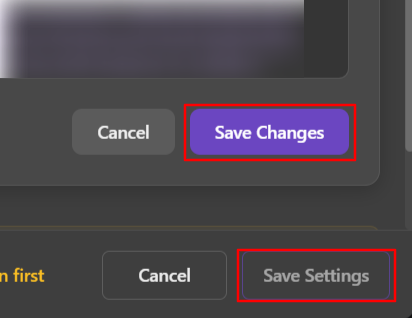
Filter errors: Carefully review all the sections of your request (prompt, bot definition, plugins, lorebooks, chat history, persona, etc.). Filters can be triggered due to:
- Having FORCETHINKING and/or WEB SEARCH commands enabled
- Using PREFILL and/or JAILBREAK with uncensored models
- Having a "jailbreak" prompt that mentions guidelines/filters
- Extreme content
- Using a censored model without a jailbreak
If you're using Gemini and wondering why you get filtered at a certain point in the chat, here is some info about that.
Slow response time? It could be due to your context size, amount of commands/plugins/lorebooks/etc. you're using, text streaming (having it on tends to increase wait time), model/provider traffic, etc.
Getting Network error even if you've done everything right? Try using a VPN if you don't use one. And if you're using one, try turning it off.
If you've attempted to troubleshoot but nothing works, you can ask for help or submit a bug report via the website's Help Portal, or come to the dedicated LoreBary channel within JAI's discord server (we don't have a separate discord server). We can also be found in JAI's subreddit but there's no streamlined bug report channel there.When asking for help or submitting a bug report, please provide the following info:
- Model and provider/proxy.
- Device, browser, OS, if it's relevant.
- All commands/plugins/lorebooks/etc. that you're using. TITLES, PLEASE. Use <MYSETTINGS> to get them.
- Generation settings.
- If it's an error, please copy it.
- Give us a clear idea of your issue. What are you trying to do? What happens instead? Have you attempted any troubleshooting?
- It's usually very helpful if you attach screenshots and/or videos.
Official error docs
Official OpenRouter Error Docs
Official AI Studio Error Docs
Official DeepSeek Error Docs
Official OpenAI Error Docs
Gemini Resource Exhaustion 429 Error
Official Chutes Troubleshooting Docs
Official Z.ai Error Docs
Official xAI Error DocsCloudflare 4XX Client Error Codes
Cloudflare 5XX Error Codes
This allows for a more complex trigger system.Steps: create Block --> rename it
add trigger --> you can add more than one trigger --> how to control which trigger is obeyed? --> AND/ORIn Variables & Switches section --> create variable heartRate, define initial valueIn Triggers section --> Create new trigger group --> select variable --> value?Go to Actions --> in Action Type, select Set Variable --> in Variable Name, select the one created, or create one on the spot (but you'll have to define the initial value ) --> heartRate --> in Operation, choose what you want (set to a value, add, substract){{ variable}} becomes macro??
GAIN APPLEScreate new block --> choose trigger type
go to actions --> new action --> choose Set Variable --> create variable apple --> operation plus --> 1
add new action --> action type Add Message --> "User gained 1 apple."create new block --> choose trigger type Variable --> choose the previously created apple variable --> operator greater or equal than --> value to compare 5
go to actions --> action type add message --> role user --> textadd new action --> select action type Set Variable --> crate variable gold --> operator plus --> value 10add new action --> choose action type Set Variable --> select variable apple --> operation set --> value 0